Getting Started
This page covers installing and configuring a Balthazar Runner, which executes experiments on a local computer and connects them to Balthazar.
What is a Runner?
A Runner is a lightweight application that runs on a laptop or desktop. It executes experiment workflows locally while securely communicating with the Balthazar backend.
Python installation
Balthazar requires Python 3.8 or newer.
If Python is not yet installed on the computer, download and install it first. We recommend performing a fresh installation using the official installers available at:
Installing a Runner
Follow the steps below to create and install a Runner.
1. Open the Balthazar web app
Navigate to https://core.balthazar.app, or to the organisation's own Balthazar address if it has a custom one, and log in.
2. Open Runner settings
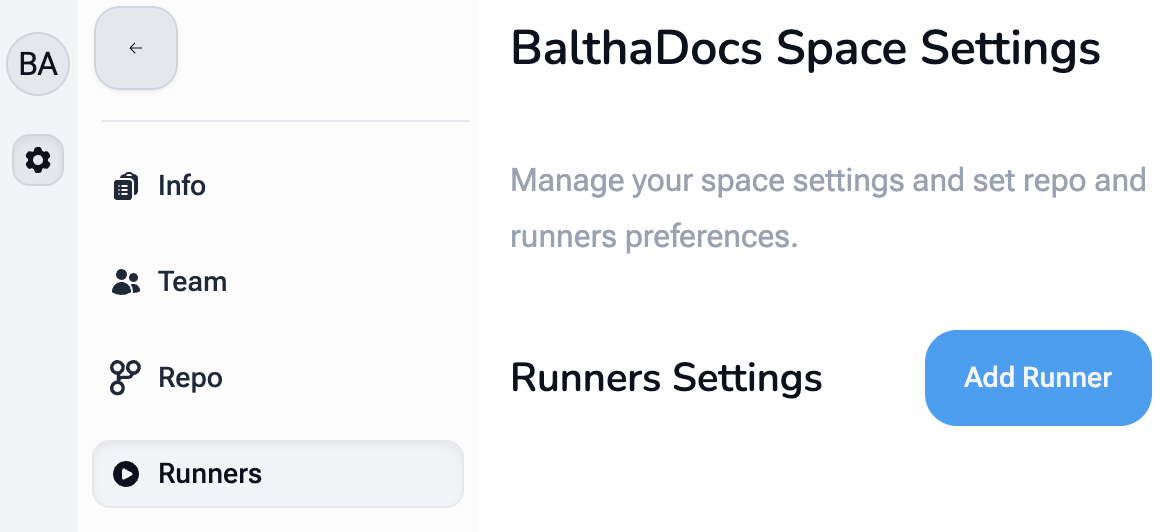
- Click the gear icon in the left-hand sidebar
- Select Runners
- Click Add Runner
3. Create the Runner
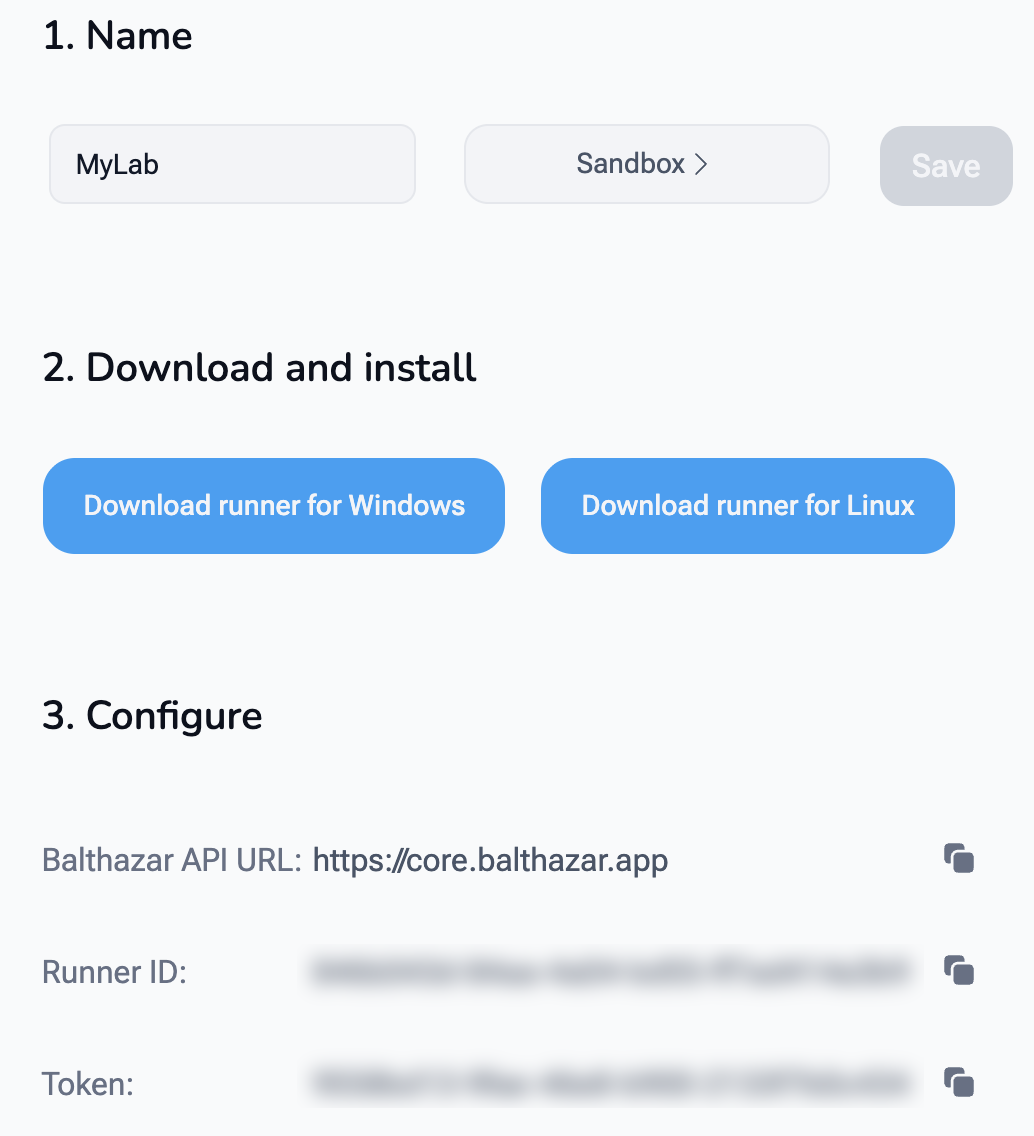
- Enter a name for the Runner (for example,
MyLab) - Click Save
4. Download and install the Runner
After saving, the download buttons become active:
- Choose the installer for the operating system: Windows or macOS (Apple Silicon)
- Download and run the installer on the machine where the Runner will operate
5. Launch the Runner
Open the Balthazar Runner application on the laptop or desktop where it was installed.
6. Connect the Runner to Balthazar
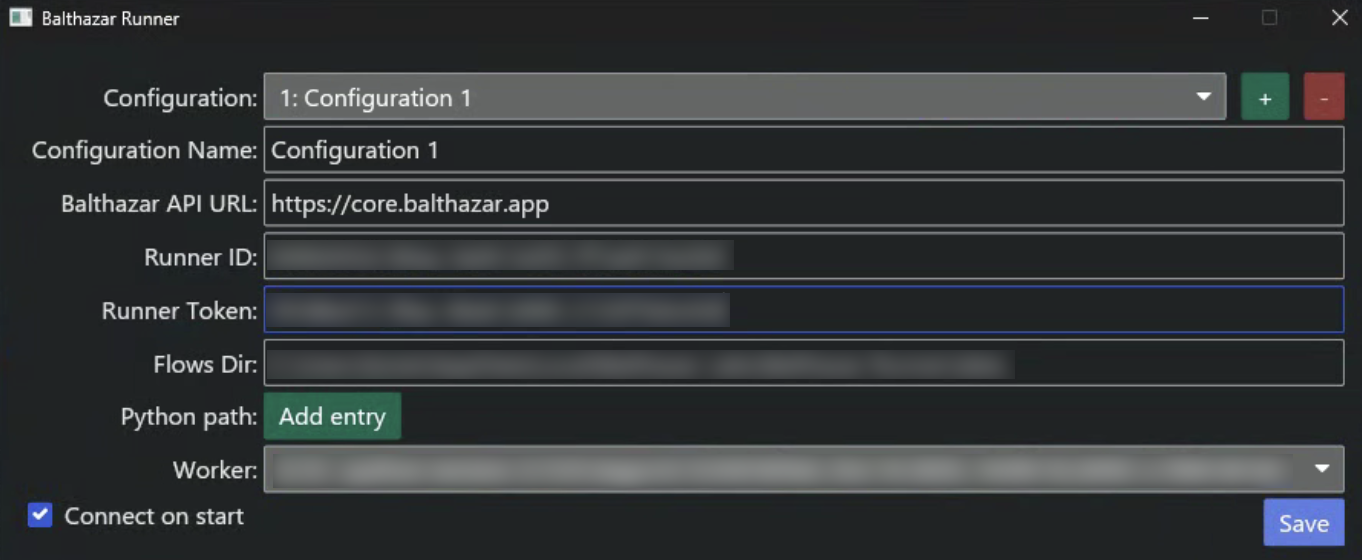
- From the Balthazar web app, copy the Balthazar API URL into the matching field in the Runner application. The field starts as
https://core.balthazar.app; change it only if the organisation has its own Balthazar address - Copy the Runner ID the same way
- Copy the Token into the Runner Token field
- In the Python dropdown, check that the selected Python is the one the experiments should use: the installation that has the lab's libraries (such as
numpyorpyvisa). If it is not in the list, click +, choose Executable (the path topython) or Venv (a virtual environment folder), enter the path, and click Confirm. Tick Remember python to keep this choice - Click Save, then Connect. Tick Connect on start to reconnect automatically whenever the Runner app is opened
7. Test the connection
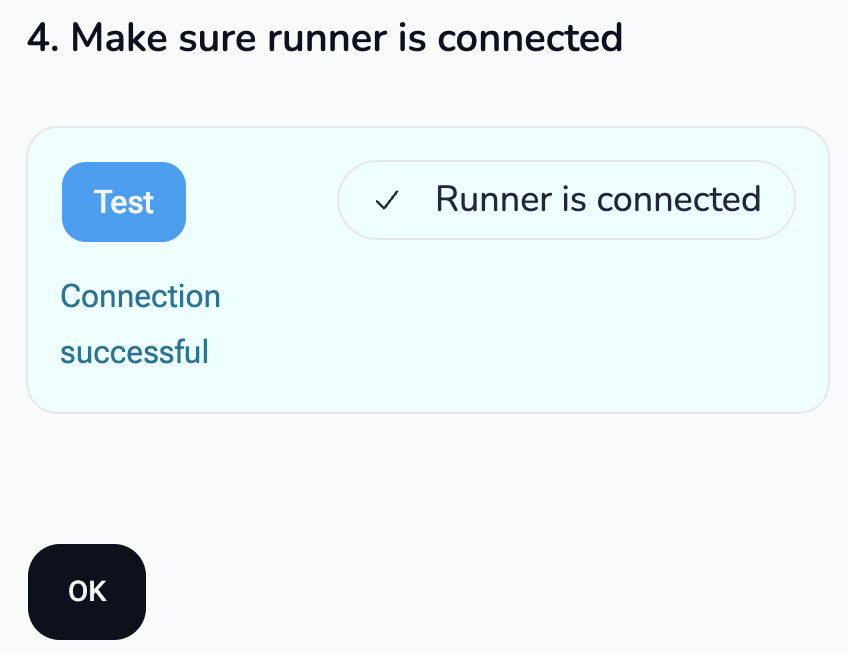
- Click Test in the Balthazar web app. If everything is configured correctly, Connection successful appears
- After confirming, the Runner appears in the list with a status of Online
Once connected, the Runner is ready to execute experiments from Balthazar.