Spaces and Contexts
Balthazar organises work in two containers: a Space for the whole lab, and Contexts for the individual projects inside it. Together with roles and visibility settings, they decide what each person sees in the app. Secrets, such as an instrument API key, are stored here too.
What is a Space?
A Space is the top-level container: one lab or one company. It holds all the people and all the resources for that group, and most organisations need only one. No resources are shared between Spaces.
What is a Context?
A Context is a project inside a Space: a product line, a material under study, a measurement campaign. Each Context has its own Flows, Devices (the samples being measured), Runs, Runners, Wiki pages, and Secrets, so each project shows only what belongs to it.
Every new Space starts with one Context ready to use, named Sandbox. Create more as the work grows.
Switch between Contexts
Click the current Context name at the top of the left sidebar. The dropdown lists every visible Context:
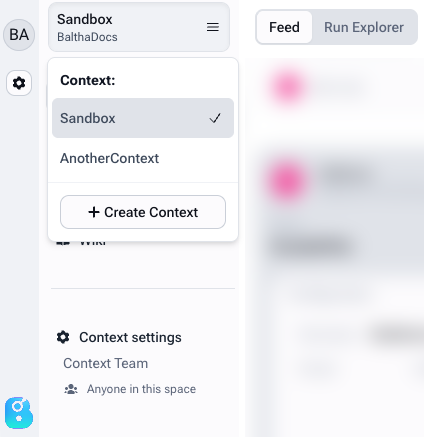
Balthazar always works inside one Context. Anything created (a Flow, a Device, or a Run) belongs to the Context that was active at the time.
Create a Context
In the same dropdown, click Create Context. Enter a name, choose who can see it (only the creator, everyone in the Space, or a chosen list of people), then click Add context:
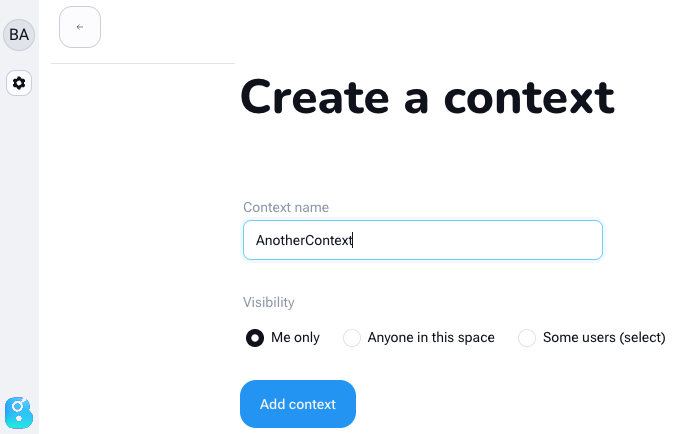
To change this later, open Context settings at the bottom of the sidebar menu.
Roles: what each person can do
Each person has one role per Space, and it applies in every Context inside it. There are four.
| Role | What they can do |
|---|---|
| Space owner | Everything a Collaborator can do, plus editing or deleting the Space, inviting people and changing roles, and connecting the code repository. |
| Collaborator | Create, edit, and start Flows. Manage Devices, Runners, Tags, Wiki pages, Secrets, and Contexts. |
| Reader | Read only, including the code of Flows. Cannot edit or start Flows. |
| Guest | Read only, without the code of Flows: sees Runs, Devices, and results, but not the scripts. |
Only a Space owner can invite people or change someone's role. Both live under the gear icon in the left sidebar, which opens Space Settings, in Team.
Starting a Flow requires the Collaborator role, which also allows editing.
Visibility: what each person sees
A role sets what a person is allowed to do. Visibility sets which individual items they see at all.
The two settings work on different axes. A Context's own visibility picks people: who may enter the project. An item's visibility picks Contexts: which projects it appears in.
Flows, Devices, Runs, Runners, Wiki pages, and Secrets each carry their own setting:
- Only me: nobody else in the Space sees it.
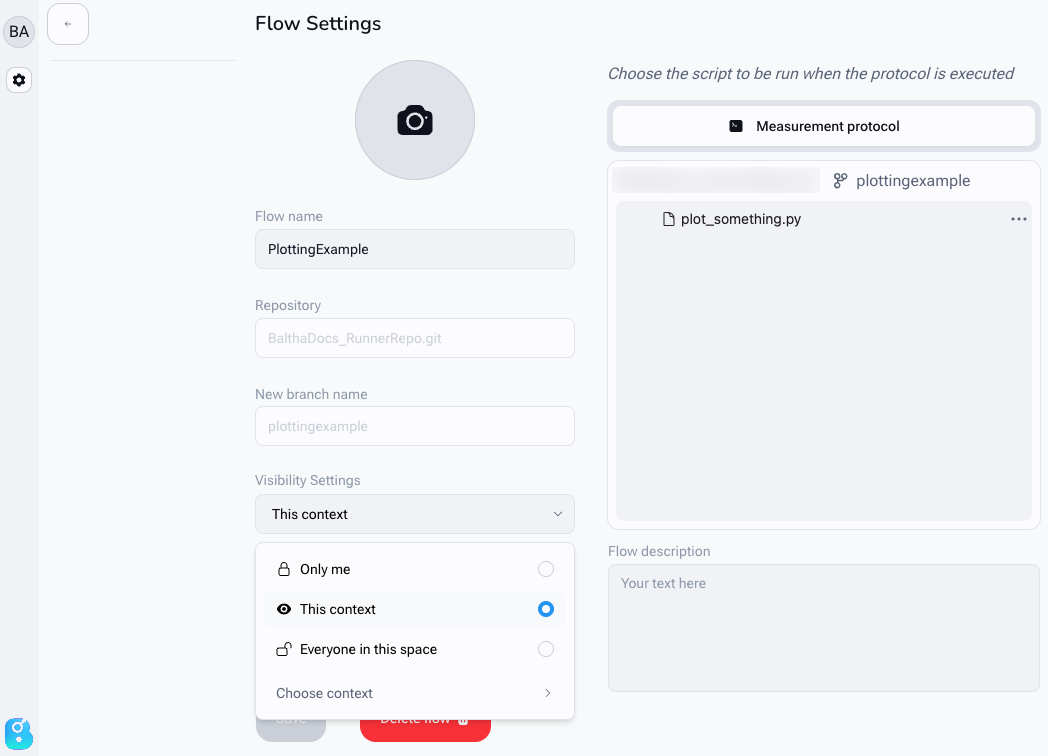
- This context: anyone who can see the current Context sees it. Not offered for Runners and Secrets; for those, pick the Context under Choose context.
- Everyone in this space: no restriction.
- Choose context: tick several Contexts at once. This is how one Device or one Runner is shared between several projects.
A Flow made in one Context does not appear in another until that Context is added to it.
Saved Run Explorer configurations behave differently: they are stored per Context, so everyone working in that Context sees the same saved views. Only the unsaved state of the table is personal, kept in each person's browser.
Change the visibility of a Flow or Device
Open the Flow or Device, go to its settings, and use Visibility Settings:
Warning
Always stay on the list. A Runner or a Secret hidden from its owner cannot be recovered.
Change the visibility of a Runner
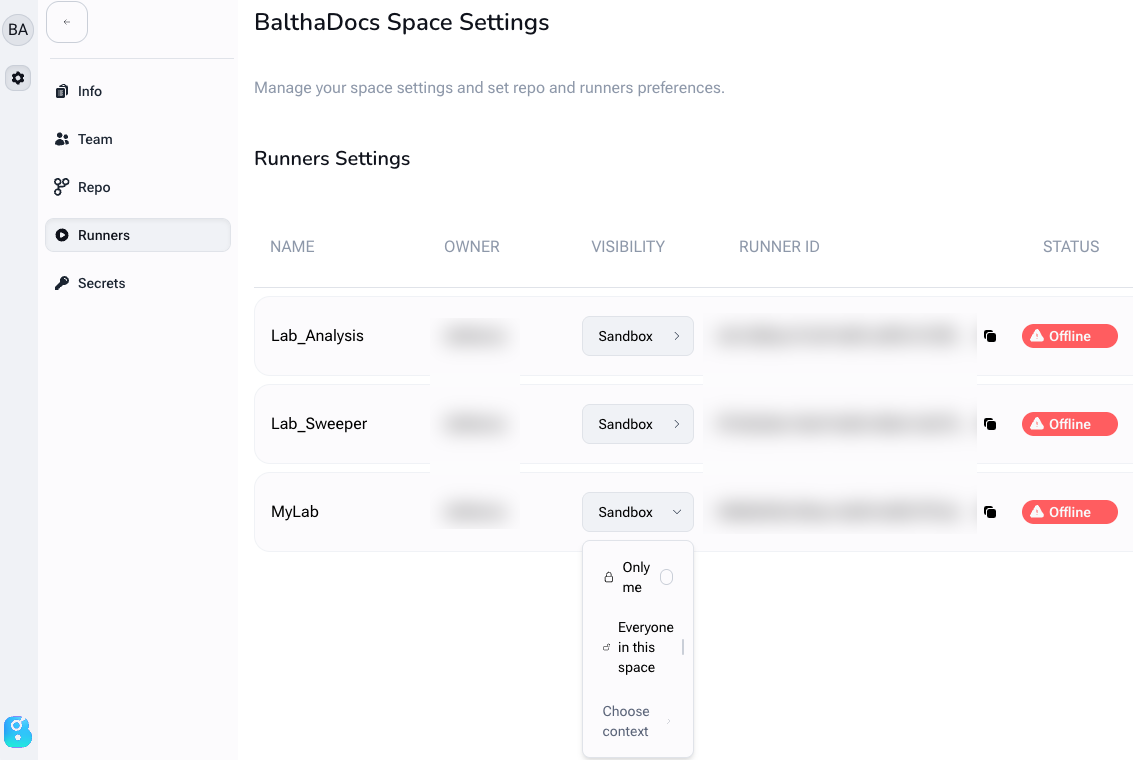
Click the gear icon, open Runners, and set the visibility on that Runner's row:
Secrets
A Secret is a credential that should not be written into code: an instrument API key, a database password, a token for an external service. Store it once in the Space, then read it from any Flow.
Add one under Space Settings in Secrets, with New secret. Fill in the Name and Value, and set its visibility to choose who can use it.
Read it by name in a Flow, guarding against the case where it is not there:
import balthazar as blt

if "INSTRUMENT_API_KEY" in blt.secrets:
    api_key = blt.secrets["INSTRUMENT_API_KEY"]
    blt.info("Instrument key loaded")  # never log the value itself
else:
    blt.warn("No instrument key configured")
A Secret that is not visible to the person starting the Flow is not there at all: the membership test returns False and reading it by name raises a KeyError. If a Flow works for one person but not for a colleague, check the Secret's visibility first.
Balthazar makes Secrets available to a Flow while it runs and never saves their values with the Run. They also cannot be listed from a script: blt.secrets.keys(), .values(), and .items() raise PermissionError. However, Balthazar does not scrub the Flow's own output, so never print a Secret: it will land in the logs.